Conference Info
- IndustryHealthcare
- Unique IDUSC2026371
- Duration100 Minutes
- DateSep 4,2026 - Nov 30,2026
Description
Overview
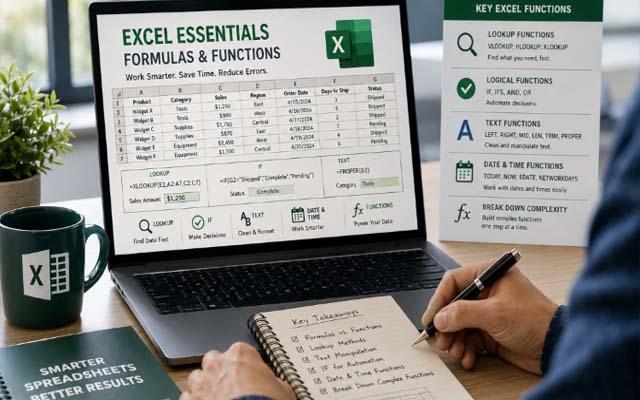
Excel offers much more than rows, columns, and data entry. If you're not using formulas and functions, you're missing out on some of the most powerful tools available in the application. This 100-minute, hands-on session will introduce you to Excel’s most essential functions using practical, real-world examples. These functions are designed to save you time, reduce the risk of errors, and make your spreadsheets more dynamic and informative.
Whether you're new to Excel or looking to brush up on foundational skills, this session will deepen your understanding of how formulas and functions work. You’ll gain confidence in using LOOKUP functions, automate tasks using logical formulas like IF, and learn to handle text, date, and time data with ease. By breaking down complex functions and showing you how to build them step by step, this webinar equips you with the tools to create smarter, more efficient spreadsheets.
Your Benefits For Attending:
- Learn the difference between formulas and functions
- Understand multiple methods to perform a LOOKUP
- Use functions to manipulate and clean text
- Automate data entry with the IF function
- Work with date and time functions more effectively
- Break down complex functions into manageable parts
This session is perfect for those at a beginner to intermediate level who want to expand their Excel capabilities and become more efficient in their daily work.
Why this webinar is a benefit to attend:
Mastering these core Excel functions will help you streamline your workflow, boost productivity, and increase the accuracy of your spreadsheets—valuable skills for any professional working with data.
Table of Contents
- Introduction
- Formula and Functions Overview
- Date Formulas
- Brackets/Parenethesis
- Absolute Reference
- Functions - Sum And Average
- The SUM Function
- Dates
- IF Function
- LOOKUP Functions
- XLOOKUP
- VLOOKUP
- Presenter’s Closing And Email Address
- Presentation Closing
Index
- Absolute Reference
- AVERAGE
- Cell
- Cell Range
- Column
- Format
- Formula
- Formula
- Function
- HLOOKUP
- IF Function
- LOOKUP
- Parameter
- Row
- SUM
- VLOOKUP
- XLOOKUP
Key Terms
AVERAGE : Returns the average (arithmetic mean) of the arguments.
Absolute Reference : Absolute references in Excel are a direct link to a specific cell or range of cells that remain fixed if you copy or drag the formula. Absolute references are represented by $ symbols. A $ before a column letter freezes the column, while a $ before the row number freezes the row number. You can freeze the column letter and/or row number when needed.
Cell: In spreadsheet applications, a cell is a box in which you can enter a single piece of data. The data is usually text, a numeric value, or a formula. The entire spreadsheet is composed of rows and columns of cells.
Cell Range: A group of cells is known as a cell range. Rather than a single cell address, you will refer to a cell range using the cell addresses of the first and last cells in the cell range, separated by a colon. For example, a cell range that included cells A1, A2, A3, A4, and A5 would be written as A1:A5.
Column: A column is a vertical series of cells in a chart, table, or spreadsheet in Excel.
Format: When we format cells in Excel, we change the appearance of a number without changing the number itself. We can apply a number format (0.8, $0.80, 80%, etc) or other formatting (alignment, font, border, etc). By default, Excel uses the General format (no specific number format) for numbers.
Formula: A formula is an expression which calculates the value of a cell.
Formula Bar: A toolbar at the top of the Microsoft Excel spreadsheet window that you can use to enter or copy an existing formula into cells or charts. It is labeled with function symbol (fx). By clicking the Formula Bar, or when you type an equal (=) symbol in a cell, the Formula Bar will activate.
Function: Functions are predefined formulas and are already available in Excel.
HLOOKUP: HLOOKUP is an Excel function to lookup and retrieve data from a specific row in table. The "H" in HLOOKUP stands for "horizontal", where lookup values appear in the first row of the table, moving horizontally to the right. HLOOKUP supports approximate and exact matching, and wildcards (* ?) for finding partial matches.
IF Function: Use the IF function, one of the logical functions, to return one value if a condition is true and another value if it's false. So an IF statement can have two results. The first result is if your comparison is True, the second if your comparison is False.
LOOKUP: The Microsoft Excel LOOKUP function returns a value from a range (one row or one column) or from an array. The LOOKUP function is a built-in function in Excel that is categorized as a Lookup/Reference Function. It can be used as a worksheet function (WS) in Excel.
Parameter: A parameter is a piece of information you supply to a query right as you run it. Parameters can be used by themselves or as part of a larger expression to form a criterion in the query. You can add parameters to any of the following types of queries: Select. Crosstab.
Row: A row is the range of cells that go across (horizontal) the spreadsheet/worksheet. Rows are identified by numbers e.g. row 1, row 5. Examples of use. A row might contain the headings of a table e.g. product ID, product name, price, number sold.
SUM: Microsoft Excel defines SUM as a formula that “Adds all the numbers in a range of cells”. This definition clearly points that Sum function has a job to add numbers and the arguments can be supplied using combinations of both numbers and range of cells. =SUM The SUM function is a built-in function in Excel that is categorized as a Math/Trig Function. It can be used as a worksheet function (WS) in Excel. As a worksheet function, the SUM function can be entered as part of a formula in a cell of a worksheet
VLOOKUP: An Excel worksheet function that allows you to look up data from a list by specifying criteria, cell coordinates for the list, column number from which to return data, and an indication as to whether you want an exact or approximate match.
XLOOKUP: The XLOOKUP function searches a range or an array, and returns an item corresponding to the first match it finds. If a match doesn't exist, then XLOOKUP can return the closest (approximate) match. Where a valid match is not found, return the [if_not_found] text you supply.
Mr. Mike Thomas